
e-Factura: SPV connection and automatic sending | Invoicy
I N V O I C Y
Monday - Friday, 09:00 - 18:00 +40 770 693 138 [email protected] Write to us on WhatsApp
ROEN

e-Factura

Invoices reach ANAF, with no extra work

You send invoices to your company's Private Virtual Space (SPV) straight from Invoicy, manually, automatically or in bulk. Connecting takes a few minutes and is done only once.

  • Qualified digital certificate
    On a USB token or in the cloud, from an authorised provider.
  • SPV account registered with the CUI
    Accounts registered with a CNP cannot send invoices to SPV.

What Invoicy does for e-Factura

Correct XML, first time

The CIUS-RO file is created by itself when you issue and is checked before sending.

  • Different VAT rates on the same invoice
  • The client's county and country are checked
  • The client's CUI is checked with the check digit

Send as you choose

You send one invoice, a group or all the remaining ones, or you let the app do it.

  • Manual, from the invoice report
  • Automatic, 1 to 4 days after issuing
  • In bulk, from the Send to SPV page

The report of unsent invoices

You see on tabs what is waiting, what is scheduled, what was rejected and what stopped.

  • The 5 business day deadline, with a warning when it is exceeded
  • You schedule sending now or in 24 hours
  • You retry stopped invoices with one click

No risk of being blocked

We respect ANAF's limits and stay at roughly half of them.

  • Invoices go out in the order they were issued
  • If ANAF asks for a pause, the app waits
  • The status and the reason for rejection appear in the report

You also receive suppliers' invoices from SPV, straight in the app.

Four steps, from token to first invoice

If the token is with your accountant, they can do steps 3 and 4. From the e-Factura page of the app you can send them the instructions.

  1. Get the digital certificate

    You buy a qualified digital certificate, on a USB token or in the cloud, from an authorised provider.

  2. Register the company in SPV

    The company must be registered in the Private Virtual Space (SPV), in its own name or through the legal representative. What matters is that the registration is made with the CUI, not with a CNP.

  3. Start the setup in Invoicy

    Insert the token in the USB port, then open the e-Factura page from the menu and click “Connect SPV” (Conectează SPV). We take you to the ANAF authorisation page and bring you back to the app.

    The e-Factura page in the app, with the Connect SPV (Conectează SPV) button
    The e-Factura page in the app, before connecting.
  4. Enter the token PIN

    When the browser asks for the certificate, you choose it, type the PIN from the token and confirm with OK. The integration stays active: you do not repeat it for every invoice issued.

    The e-Factura page after connecting, with the Connected (Conectat) status
    After connecting, the status Connected (Conectat) appears.

You send invoices manually or automatically

Manual

After you issue the invoice, you click “Send to SPV” (Trimite în SPV). The status updates in the report.

  • You choose when to send
  • You check the invoice before it goes out
  • Suitable when you issue few invoices

Automatic

You choose once how long to wait after issuing, between 1 and 4 days, and invoices go out by themselves.

  • It also works for recurring invoices
  • You have time to correct the invoice before it goes out
  • Invoices to clients outside Romania are ignored
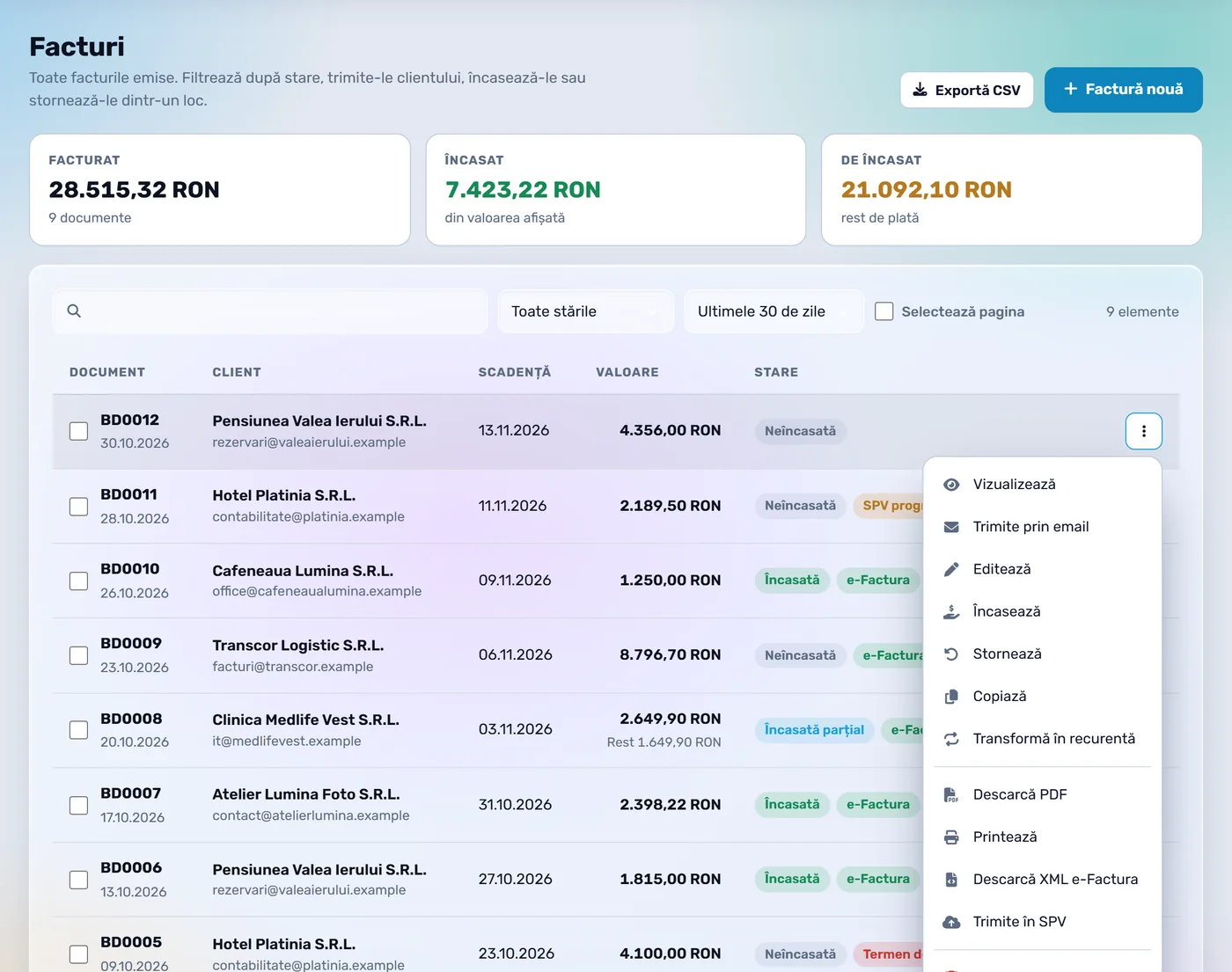
Invoice report (Raport facturi), with an invoice's menu open
Manual: in the Invoice report (Raport facturi), from the invoice's menu, choose Send to SPV (Trimite în SPV). For several invoices, tick them and click Send to SPV.
ProcessingANAF is processing the invoice. Shown in yellow in the report.The status Sent, under review, on the invoice page
ValidatedThe invoice was accepted by ANAF. Shown in green.The status Validated by ANAF, on the invoice page
ErrorCheck the details and correct the data. Shown in red.The status Rejected by ANAF, on the invoice page

For many invoices at once, you open “Send to SPV” (Trimitere în SPV) from the Document reports menu (Rapoarte acte). You see the status in the Invoice report. After processing, from “See details” (Vezi detalii) you download the SPV archive, with ANAF's signature, or see the errors.

Questions about e-Factura

What do I need to connect?
The company's qualified digital certificate (USB token or cloud) and an SPV account registered with the CUI. If the token is with your accountant, they can do the setup.
Settings, e-Factura integration (Setări, Integrare e-Factura): you click Connect SPV (Conectează SPV).
How do I send invoices to SPV?
Manually, with the “Send to SPV” (Trimite în SPV) button on the invoice, or automatically, a number of days after issuing. With automatic sending you have time to correct the invoice before it goes out.
The e-Factura page: manual or automatic, with the sending statuses.
How do I send several invoices to SPV at once?
From Send to SPV (Trimitere în SPV) (the Document reports menu (Rapoarte acte), Intermediate level or higher). You see the invoices that have not gone out yet, with the 5 business day deadline, choose the ones you want (or all) and schedule them now or in 24 hours. They go out in date order, at a pace ANAF accepts, and the blocked ones appear in separate tabs, with the reason and a retry button.
How do I see if the invoice was sent successfully?
In the Invoice report (Raport facturi), at the status of each invoice: yellow means ANAF is processing it, green that it was validated, red that there are errors. After processing, from “Vezi detalii” (See details) you download the SPV archive or see the errors.
Validated by ANAF
Validated by ANAF
Sent, under review
Sent, under review
Rejected by ANAF
Rejected by ANAF
What do I do if I made a mistake on an invoice sent to SPV?
You cancel it and issue a new one with the correct data. Both, the credit note and the correct invoice, are sent to SPV.
How do I send e-Factura for individuals?
You fill in the client's personal ID number (CNP) and the country Romania. You can hide it when sending, from Settings (Setări). If you do not have the CNP, leave the field empty and the system fills it with 13 zeros.
Settings, Preferences (Setări, Preferințe): Hide the CNP on documents.
Are invoices to clients outside Romania sent to SPV?
No. With automatic sending on, the system ignores them by itself. If you still want to send one, you use “Send to SPV” manually.
What errors can appear when sending?
Usually some client data is missing: CUI or CNP, country, city or address. For Bucharest, the city is written “Sector X” and the county “București”. Precision must be two decimals.
What are NC and CPV codes?
The NC code (Combined Nomenclature) has 8 digits and is used for the common customs tariff. The CPV code classifies public procurement and has at most 9 digits. Both are set for each product, under Lists (Nomenclatoare).
How do I turn a validated XML invoice into a PDF?
With ANAF's official conversion application, from the page e-Factura technical information.
Can I see the invoices received from suppliers?
Yes, in the Professional plan: invoices received through SPV appear in a separate report.

Have another question? See all frequently asked questions or write to us at technical support.

Issue your first invoice in e-Factura

Respectăm confidențialitatea ta
Folosim cookie-uri ca site-ul să funcționeze corect și ca să îți arătăm oferte potrivite pentru firma ta. Cookie-urile de marketing le folosim doar cu acordul tău. Află mai multe în Politica de cookie-uri.